A take-a-number queue on the screens you already have
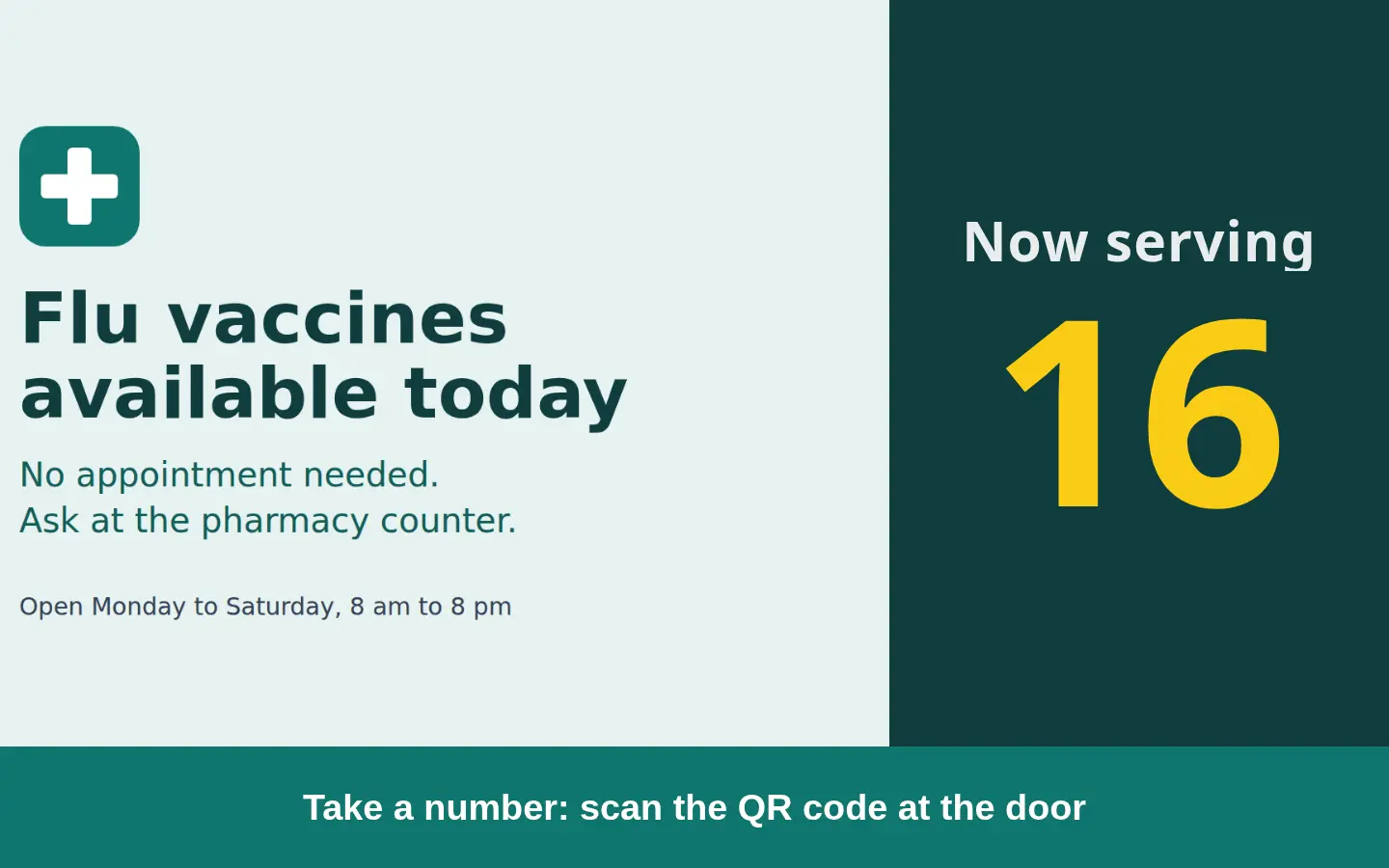
Customers scan a QR code at the door and their phone gives them a number. Staff press Next on a shared phone or tablet, and every screen showing the queue changes to the number being served, with a short chime if you want one. It suits pharmacies, clinics, service desks, counters with a waiting area, delis and bakeries. There is no ticket printer to buy and no app to install: the customer page and the staff page are ordinary web pages.
How it works
- Customers scan the printed QR code. The page gives them a number, shows the number being served, and says roughly how many numbers are ahead of them. It updates by itself while it is open.
- Staff open a staff link on a shared phone or tablet, with no account and no sign-in. A big Next button calls the next number. Call number calls any number handed out today, to skip ahead or call someone back. Anyone who can edit your workspace can do the same from the dashboard.
- Screens show the number in a Now serving widget. Put it in a zone of a layout next to your menus, offers or videos, or show it on its own. The number scales to the size of the zone.
It works the same on hosted ScreenTinker and on your own server.
What customers see
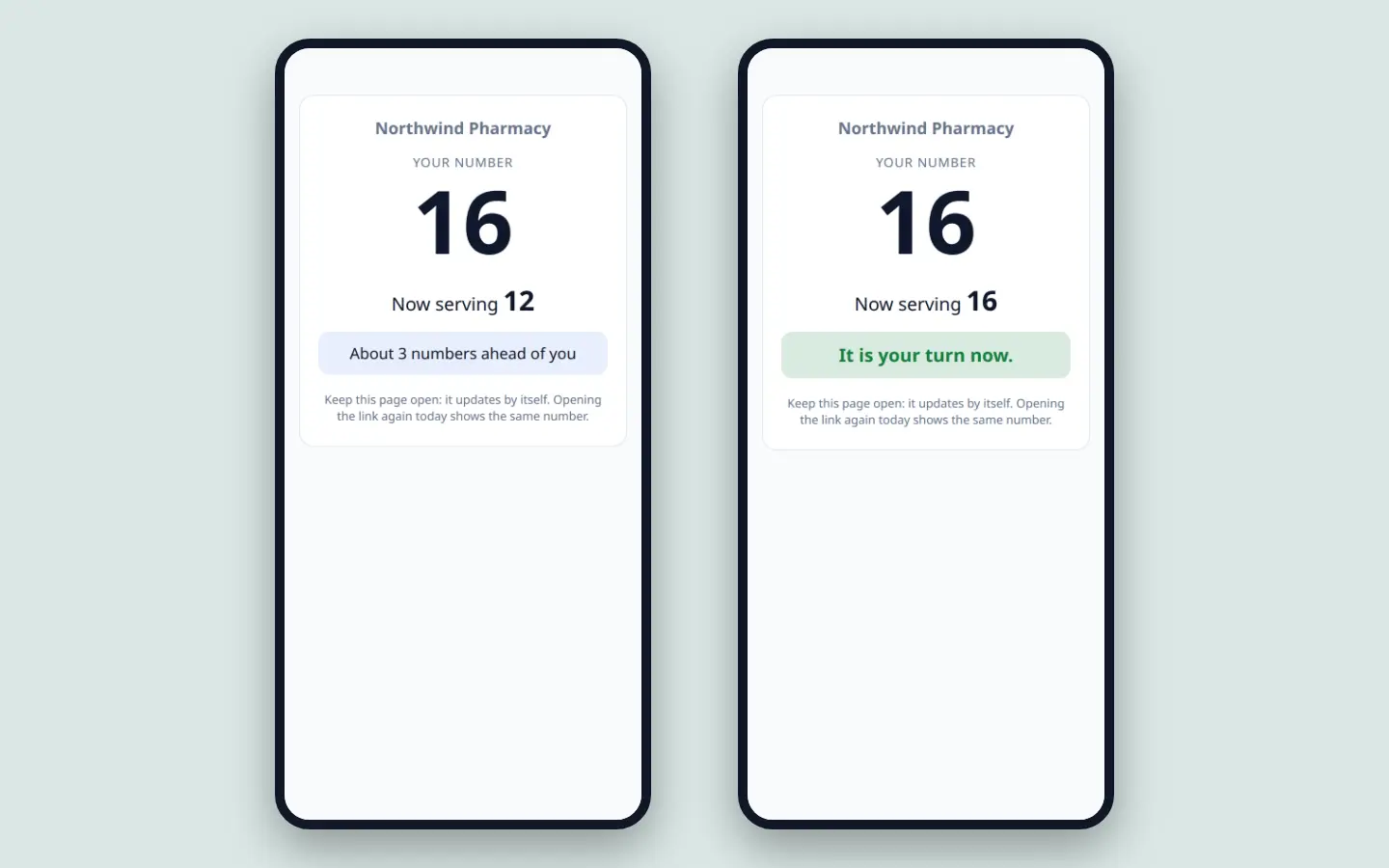
Their number in large type, the number being served, and either “About 3 numbers ahead of you” or “You are next”. When staff call their number, the page says “It is your turn now.” If their number has already passed, it asks them to speak to a member of staff. Scanning again on the same phone the same day shows the same number instead of taking a new one, so a second scan or a double tap does not jump the queue.
What staff do
The staff page is made for a phone or tablet behind the counter: the number being served, how many are waiting, a large Next button, Call number, a Chime on the screens switch, Start of day, and the last 20 things that happened (each call, each restart, the sound being switched on or off, and whether it came from the staff link or the dashboard). Next greys out when nobody is waiting. If two people press Next at the same moment, two different numbers are called, never the same one twice.
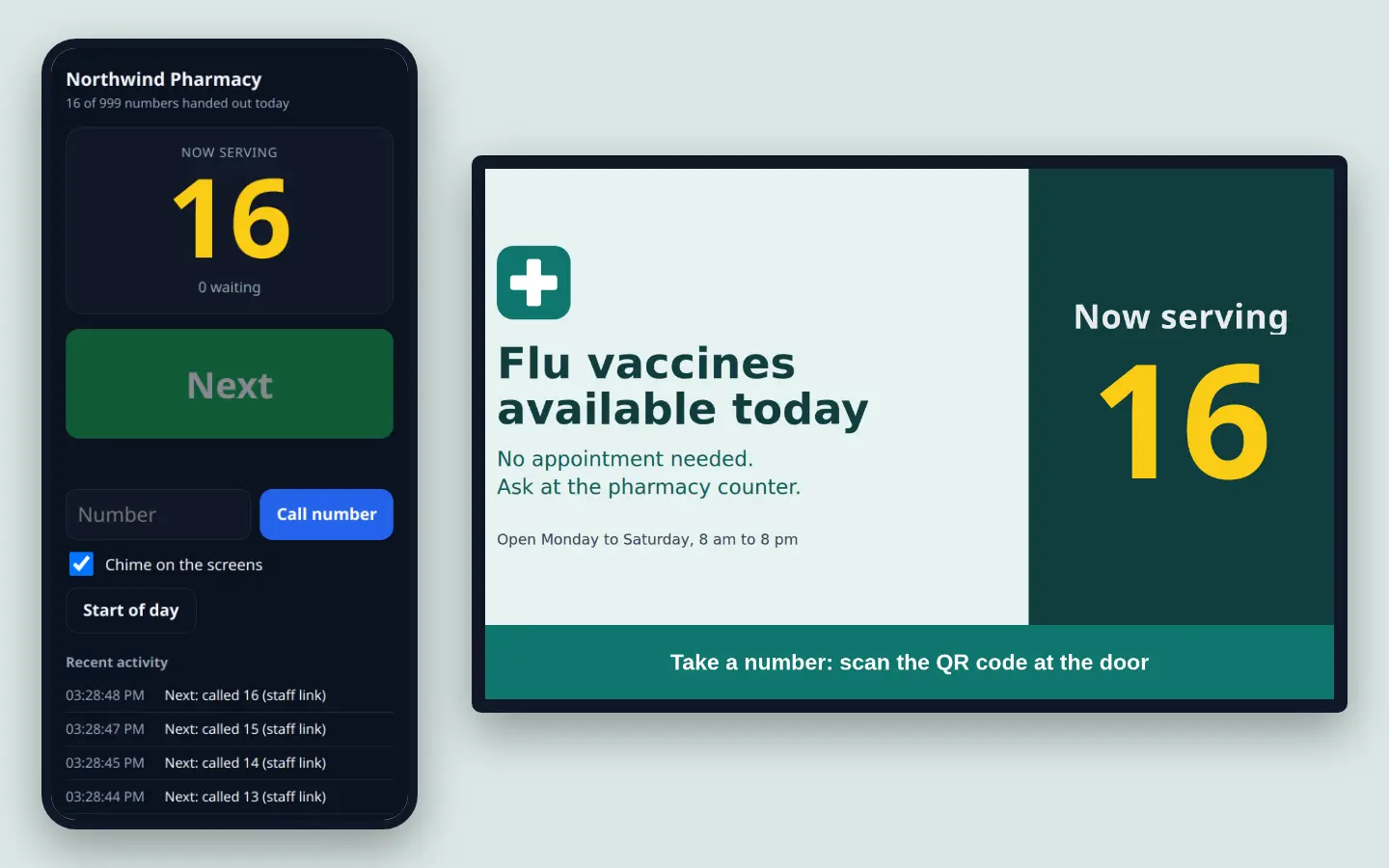
The staff link works like a key: anyone holding it can call numbers. If a device is lost or someone leaves, replace the link from the dashboard and the old one stops working at once, or turn it off completely.
A chime when a number is called
Each screen can play one short two-tone chime when a number is called. It plays once per call, never repeats or loops, and does not play when a screen starts up or when the day restarts. A quick run of calls within 3 seconds is one chime. It is off by default, and two switches must both be on: the chime in the widget’s own settings (with its volume), and Chime on the screens on the staff page, so staff can silence every screen at once without editing anything. A muted screen, a follower panel in a video wall, or a screen showing an emergency alert stays silent.
Which screens show it
| Player | Shows the number | Chime |
|---|---|---|
| Web player (browsers, kiosk browsers, Chromebooks) | Yes | Yes, after one click on the screen, or on a kiosk browser that allows sound |
| LG webOS, BrightSign | Yes | Yes |
| Android (tablets, Android TV, Fire TV) | Yes | Yes |
| Samsung Tizen | Yes | Yes |
| Raspberry Pi and Windows native player | Yes | Yes |
| Roku | Yes | Yes |
| Samsung SSSP3 signage displays | Not yet | No |
On a video wall, the wall chimes once, not once per panel.
Every day starts again at 1
Numbers restart at midnight in the queue’s own time zone, with nothing to schedule. Staff can also press Start of day whenever they like, for example when you open or after a busy event. A customer still holding an old number is told the queue has started again and can take a new one.
What it keeps about customers
Nothing that identifies them. A number is stored with a random code the customer’s own browser made, so a second scan gets the same number back: no name, no phone number, no device, no network address. Numbers are deleted when the day restarts, and taking a number is not written to the activity list. The customer and staff pages are served by your ScreenTinker server and are not indexed by search engines.
Set it up
- In the dashboard, switch to Advanced view, open Now serving and press New queue.
- Press Print QR code and put the sign where customers arrive.
- In Widgets, add a Now serving widget, pick the queue, and put it in a layout zone or a playlist on the screen in your waiting area.
- Open the Staff link on the phone or tablet at the counter and add it to its home screen.
- The step-by-step guide, with screenshots, is Now serving queue: set up take-a-number screens.
Limits
- One number at a time per queue. The screen shows the number being served, not which desk or counter to go to. For a second service point with its own numbers, such as a photo desk, make a second queue with its own QR code and widget.
- No texts or notifications. The customer’s page updates while it is open. It does not send a message to the phone.
- “Numbers ahead” is a count, not a wait time. It counts the numbers still to be called before theirs, including people who may have left.
- A daily limit. Each queue hands out at most 999 numbers a day unless you change it (up to 9999). After that the customer page asks people to speak to staff.
- Shared Wi-Fi. At most 20 new numbers a minute can be taken from one network address, so nobody can empty the queue. If many customers are on your guest Wi-Fi at once, they share that limit.
- Phones need to reach the server. Print the QR code from the dashboard opened at the address customers’ phones can reach; the dashboard warns you if the address looks private to your network.
- Samsung SSSP3 displays do not show the Now serving widget yet.
FAQ
Do customers need to install an app?
No. Scanning the QR code opens a web page in the phone’s browser. It gives them a number and updates by itself while it is open.
Do staff need an account?
No. Staff use a staff link on a shared phone or tablet, with no sign-in. Anyone holding the link can call numbers, so treat it like a key and replace it from the dashboard if it gets out. People who can edit the workspace can also run the queue from the dashboard.
Can the screen show other things at the same time?
Yes. The number is a widget, so you can put it in one zone of a layout and keep menus, offers or videos playing in the other zones, or show it full screen.
Does it beep?
Only if you want it to. The chime is off by default. Switch it on in the widget, and staff can turn the sound for every screen on or off from the staff page. It plays once per called number.
When do the numbers restart?
At midnight in the queue’s time zone, automatically, or whenever staff press Start of day.
What does it store about customers?
Only the number and a random code made by the customer’s browser, so scanning twice gives the same number. No names, phone numbers or network addresses. Numbers are deleted when the day restarts.
Try a Now serving screen at your counter
Start a 14-day Pro trial on hosted ScreenTinker: up to 15 screens, every feature, no credit card.
Or host it yourself, free and open source: self-hosting guide · GitHub