Now serving queue: set up take-a-number screens
A Now serving queue replaces the paper ticket roll. Customers scan a QR code and their phone gives them a number. Staff press Next on a phone or tablet. Your screens show the number being served, in a corner of whatever they are already playing, with a short chime if you want one.
This guide follows a pharmacy counter from start to finish: create the queue, put the number on the screen, print the QR code, give staff their link, and decide about sound. For an overview of what it does and does not do, see queue management displays.
Before you start
- Now serving is in Advanced view. New accounts start in Simple view. Switch with the Simple / Advanced buttons at the top of the menu. Now serving is under Create in the sidebar.
- You need edit access to the workspace. Only people who can edit can create a queue, call numbers or see the staff link. A Viewer sees the queue and its QR code, and nothing else.
- You need a screen already showing something. If you have not set one up yet, start with Getting started.
- Customers’ phones must be able to open your ScreenTinker address. On hosted ScreenTinker they can. On your own server, see the note below.
The Now serving page
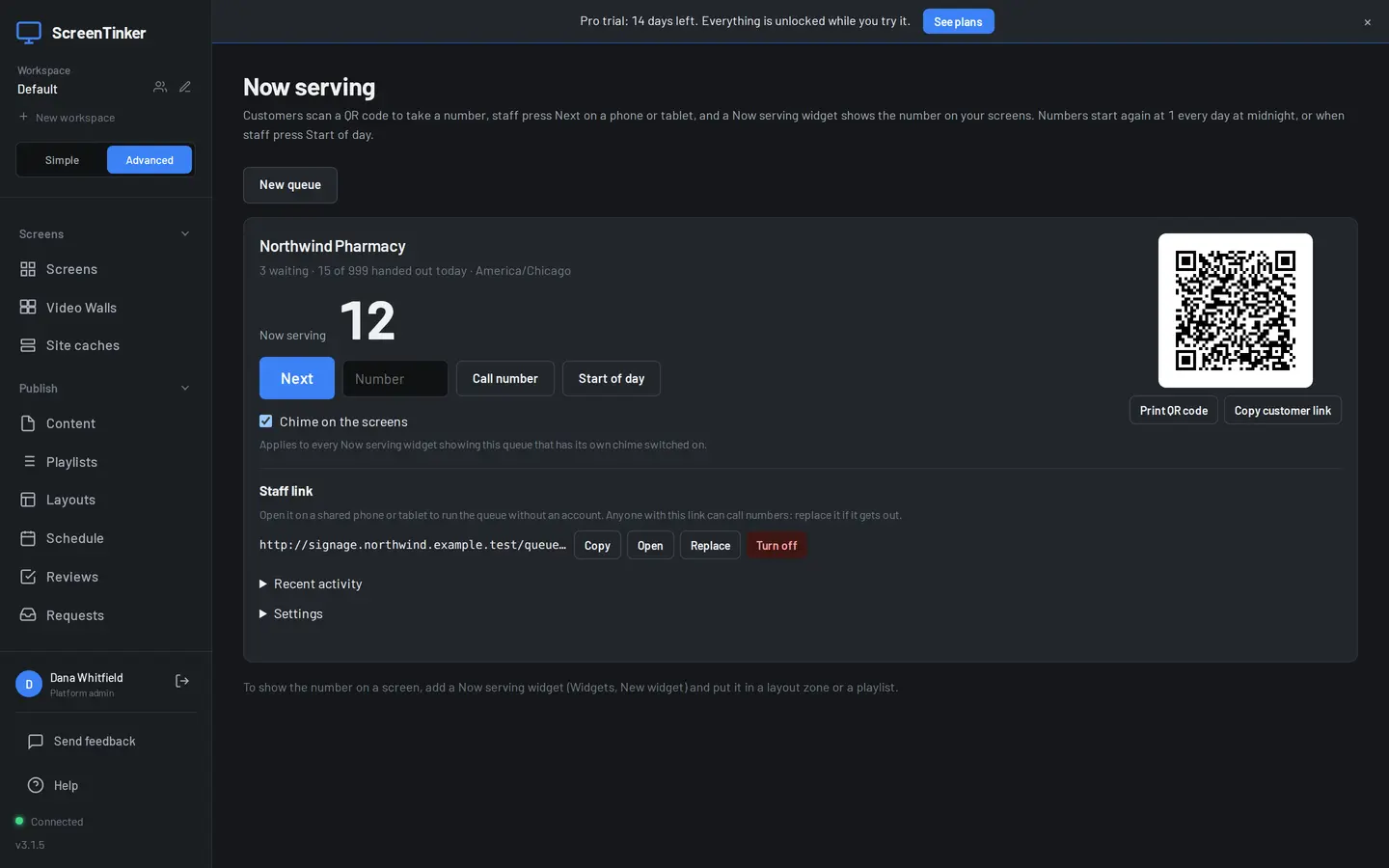
Choose Now serving in the sidebar. Each queue has a card with everything on it: the number being served, how many are waiting, how many numbers were handed out today out of the daily limit, and the queue’s time zone. Under that are Next, a box to Call number, Start of day, and the Chime on the screens switch. The QR code customers scan is on the right, with Print QR code and Copy customer link.
Create the queue
- Press New queue.
- Type a name your customers will recognise, such as “Pharmacy” or “Front desk”. Customers see it on their phone and staff see it on theirs.
- Open Settings on the new card and check the Timezone. The queue takes the time zone of the browser you created it from, and numbers restart at midnight in that zone. Type another one as a name like
Europe/LisbonorAmerica/Chicagoif it is wrong. - Optionally change Most numbers a day (1 to 9999, 999 to start with), then press Save.
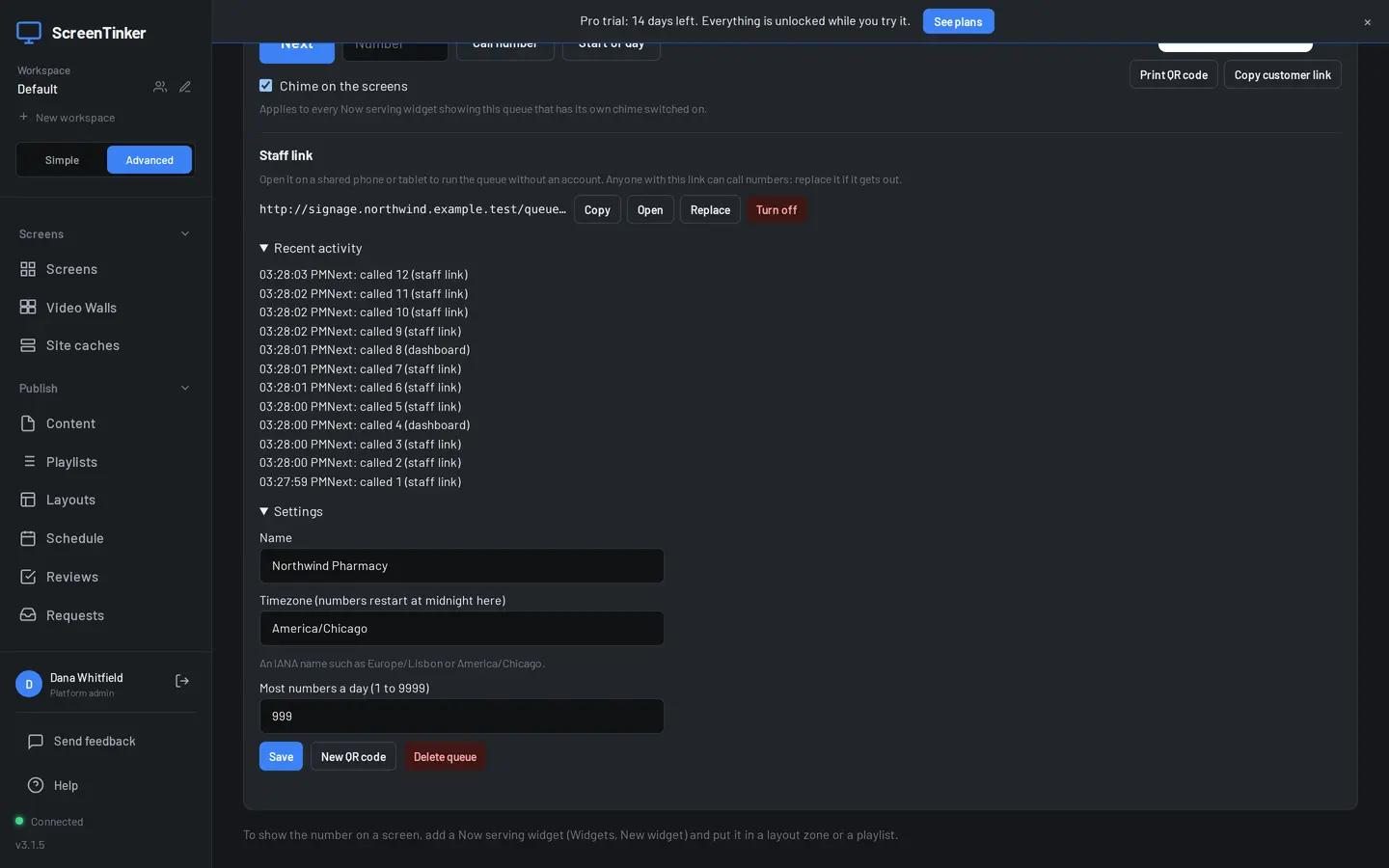
You can make more than one queue, for example one for the pharmacy and one for the photo desk. Each has its own QR code, staff link and numbers.
Make the Now serving widget
The number reaches your screens through a widget, like a clock or a menu board does. See Widgets if you have not made one before.
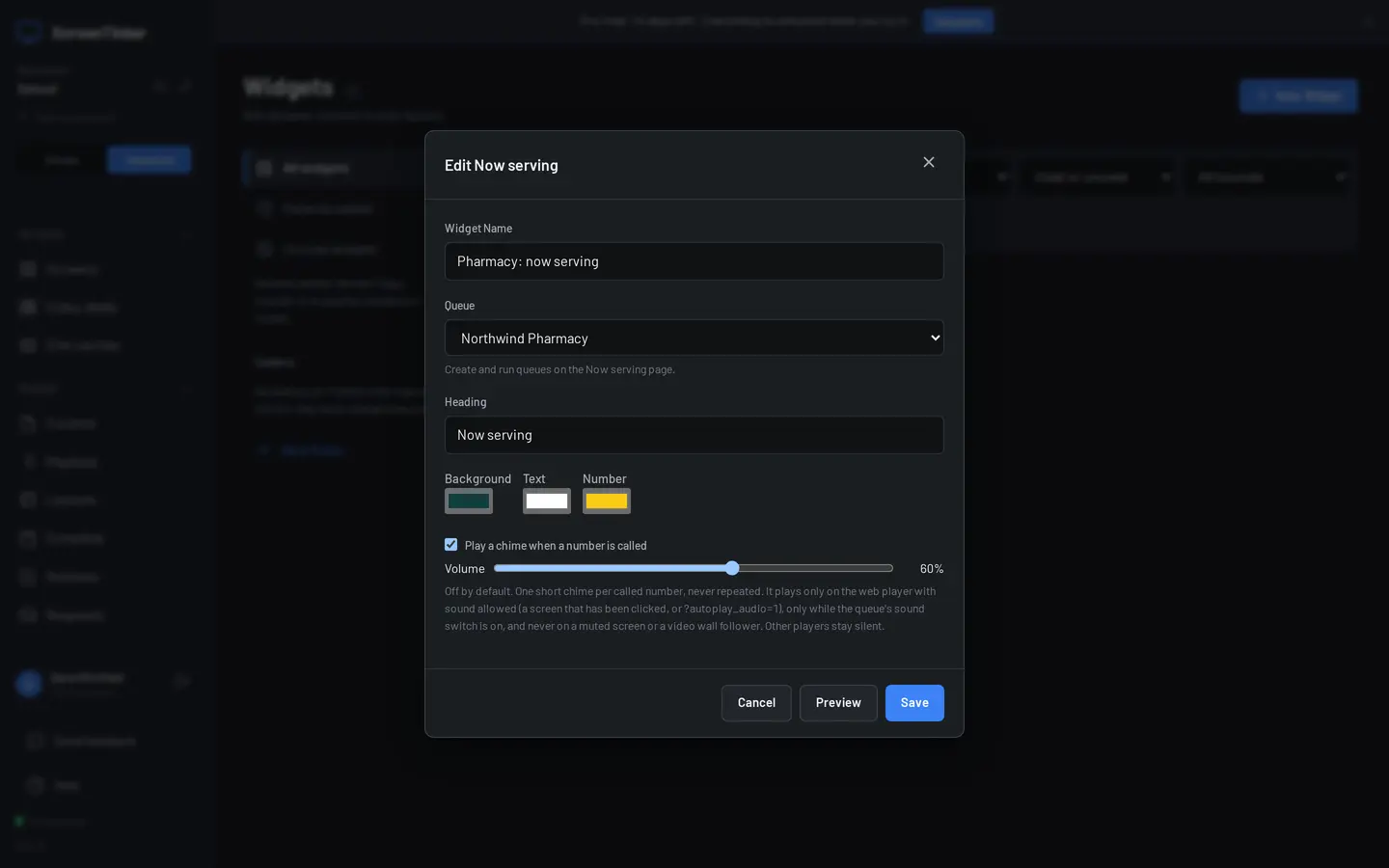
- Open Widgets, press New widget and choose Now serving.
- Pick the Queue. When there is only one, it is picked for you.
- Optionally change the Heading (“Now serving” to start with) and the Background, Text and Number colours.
- Tick Play a chime when a number is called if you want sound, and set the Volume. See Sound first: it is off unless you tick it.
- Press Save.
Put it on a screen
Use the widget like any other widget: in a layout zone next to your posters, menus or videos, as an item in a playlist, or on its own. In a zone, the number scales to the size of the zone. Publish the playlist as usual.
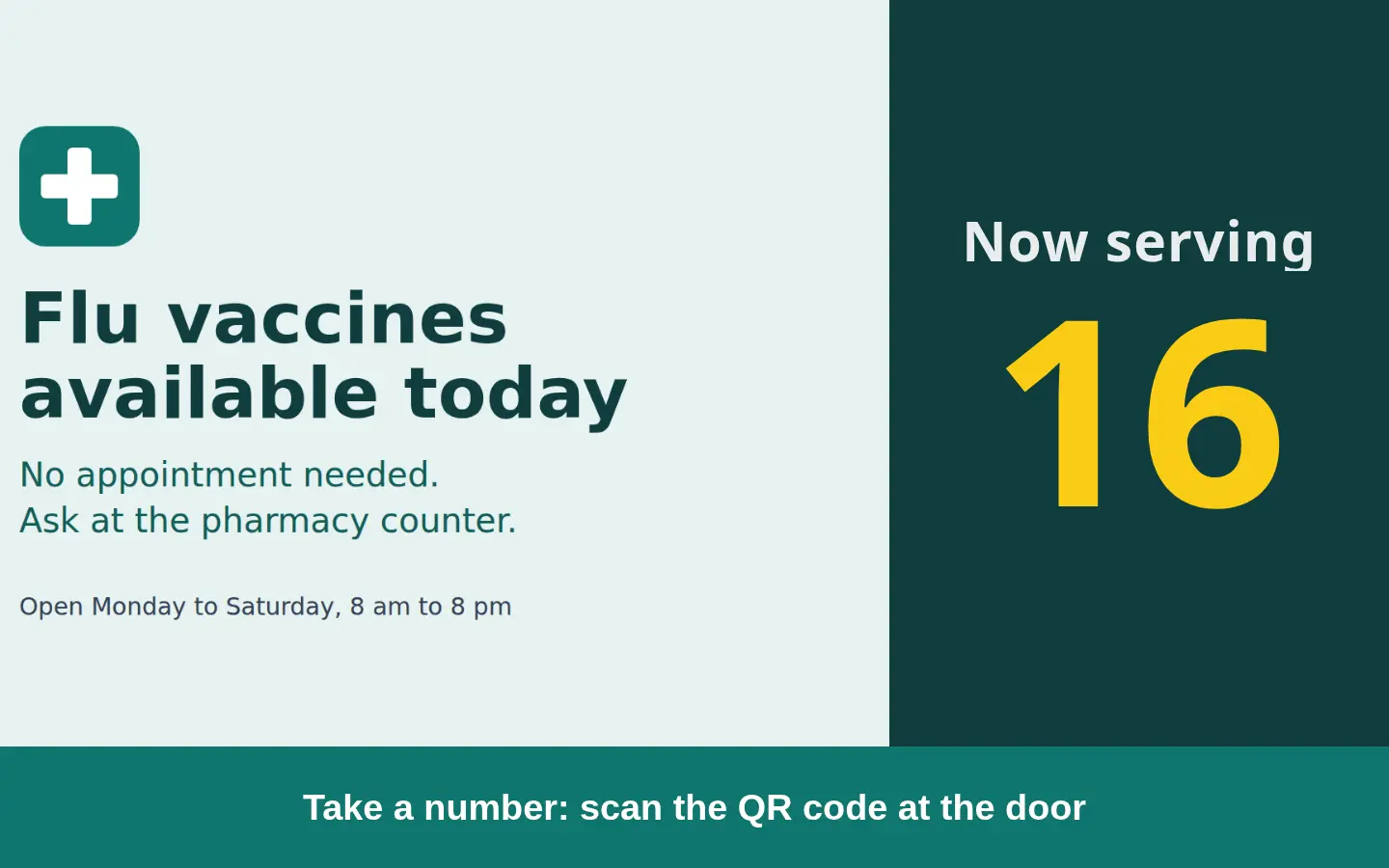
The screen checks for a new number every 4 seconds, so a call shows up within a few seconds. Until the first number of the day is called, the widget shows a dash. If the screen loses its connection it keeps showing the last number it had, and after about 20 seconds a small dot appears in its corner. It never goes blank and never shows an error.
Print the QR code
- Open the dashboard at the address your customers’ phones will use. The QR code contains the address you are on, and the page warns you if that address looks private to your network.
- On the queue’s card, press Print QR code. A page opens with the queue’s name, “Scan to get your number”, the QR code and its address, and your browser’s print window. If nothing opens, allow pop-ups for the site.
- Put the printout where customers arrive: the door, the end of the counter, the waiting area.
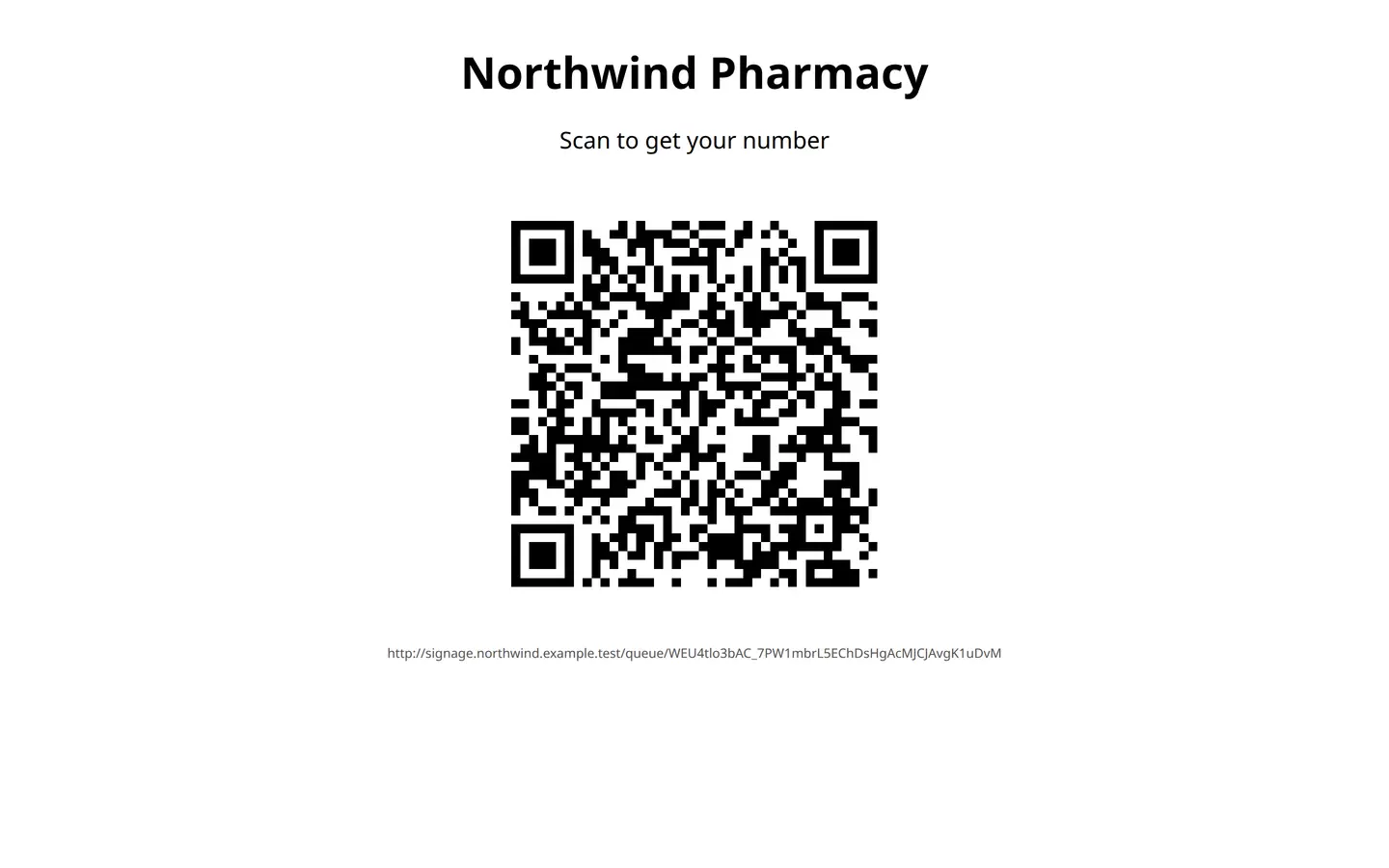
Copy customer link copies the same address, for your website or a message. If a printed code should stop working (for example, it ended up somewhere it should not be), open Settings and press New QR code. The old code stops working at once, so print the new one.
This QR code belongs to the queue. For QR codes that count scans or point at your own pages, see QR codes.
What customers see
Scanning the code opens a web page that gives the customer the next number straight away. It shows their number, the number being served, and one of these:
- About 3 numbers ahead of you: the numbers still to be called before theirs. The one being served is not counted.
- You are next.
- It is your turn now. when their number is called.
- “Your number has been called. Please ask a member of staff.” when it has already passed.
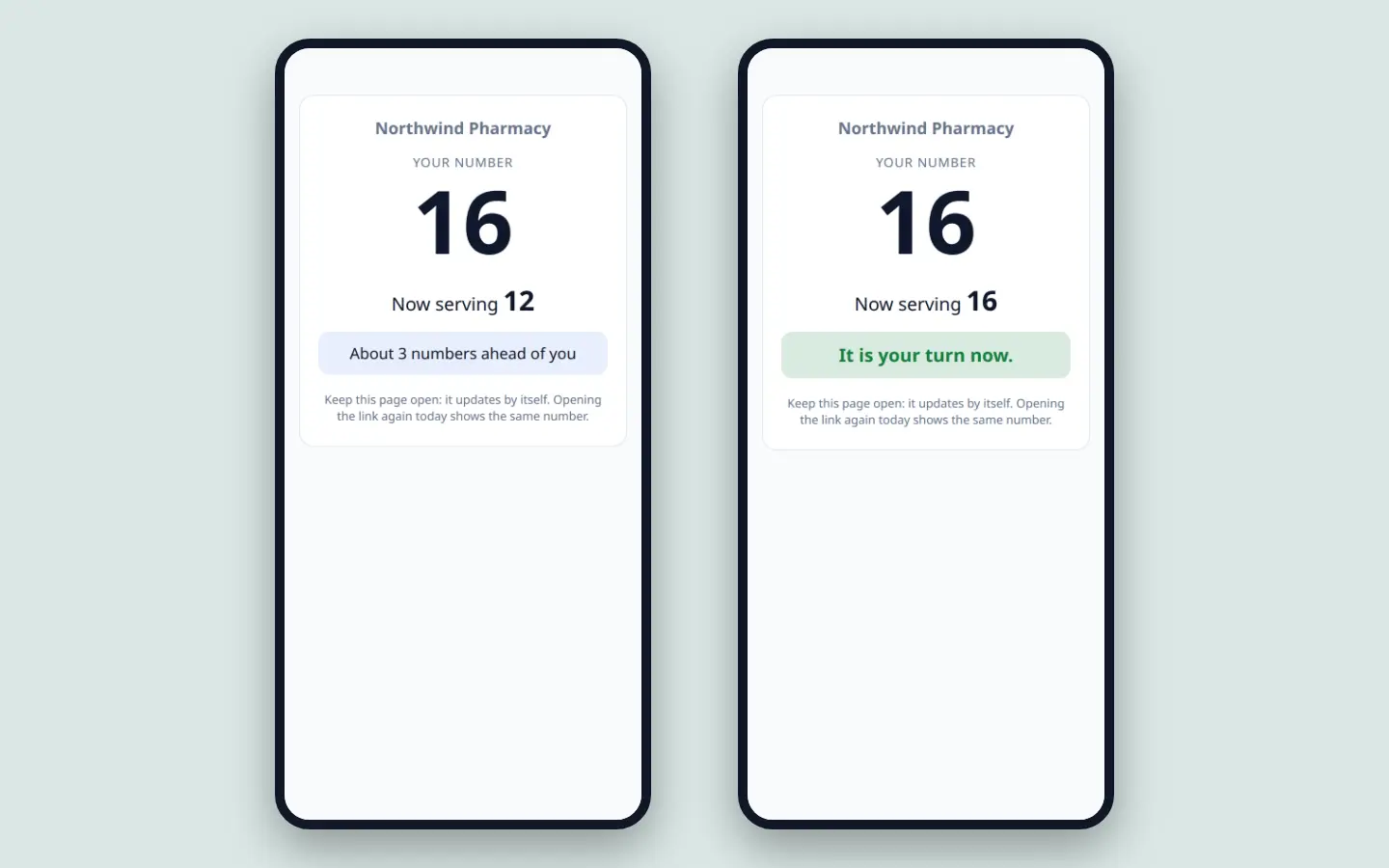
The page updates by itself while it is open. Opening the link again on the same phone the same day shows the same number rather than taking a new one. If the queue restarts while someone is holding a number, their page says so and offers Take a new number. Nothing about the customer is stored apart from the number and a random code their browser made.
Give staff the link
Staff do not need an account. Under Staff link on the queue’s card:
- Copy or Open the link, and open it on the shared phone or tablet at the counter. Add it to the home screen for one-tap access.
- Replace makes a new link. The old one stops working immediately. Use it when a device is lost or someone leaves.
- Turn off disables the staff link until you make a new one with Make a staff link. The dashboard keeps working.
The staff page has the number being served and how many are waiting, a large Next button, a box to Call number (any number handed out today, to skip ahead or call someone back), the Chime on the screens switch, Start of day, and Recent activity. Next greys out when nobody is waiting.
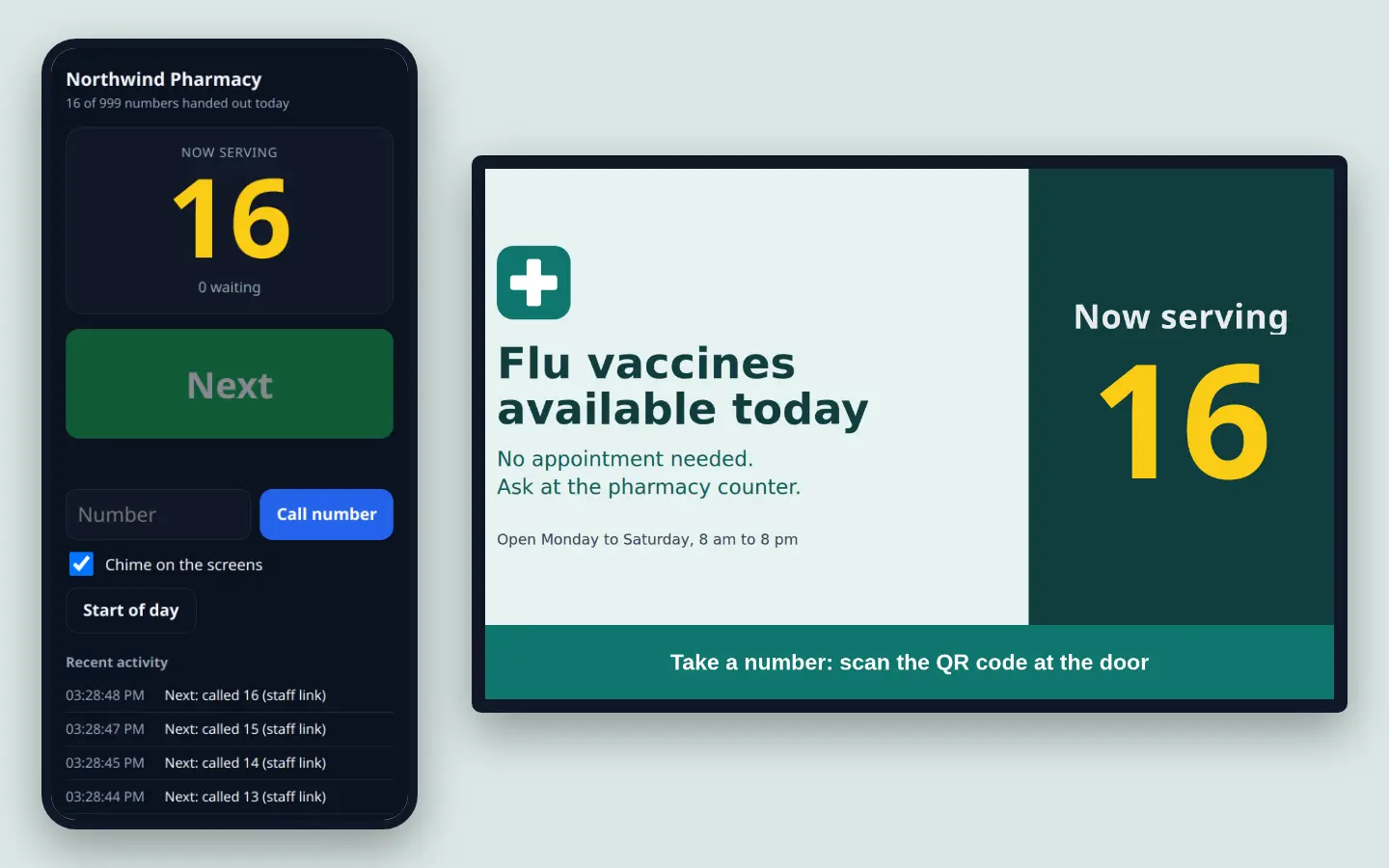
If the phone loses its connection, the page says “Not connected: showing the last known state.” and catches up when it can.
Anyone holding it can call numbers and restart the day. Keep it on the counter devices, and press Replace if it gets out. The secret part of the link is never sent to the server in the address, so it does not end up in logs.
Sound
The chime is one short two-tone sound, played once each time a number is called with Next or Call number. It never repeats or loops, and it does not play when a screen starts up or when the day restarts. Several calls within 3 seconds make one chime. Two things must both be on:
- The widget’s chime: Play a chime when a number is called, with its Volume from 0 to 100%. It is off by default.
- Chime on the screens, on the staff page and on the dashboard. It is on to start with, so staff can silence every screen showing the queue (and switch it back on) without editing a widget. Each change appears in Recent activity.
Screens follow the same sound rules as the rest of their content. The chime does not play when the screen is muted from the dashboard or the playlist item is muted, on a follower panel of a video wall (the wall chimes once, not once per panel), or while an emergency alert is playing.
Daily restart and Start of day
Numbers start again at 1 in two ways:
- Automatically at midnight, in the queue’s time zone. Nothing has to be running at midnight: the first time a screen, a phone or a staff page looks at the queue after midnight, the new day starts. Screens show a dash until the first number of the day is called.
- With Start of day, on the staff page or the dashboard, whenever you like, for example when you open in the morning. It asks you to confirm first.
Either way, every number handed out before stops counting, and those numbers are deleted. Recent activity keeps the last 20 entries, such as each call, each restart and each change to the sound switch, with who made it: the staff link, the dashboard, or the automatic midnight restart.
Which players chime
| Player | Shows the number | Chime |
|---|---|---|
| Web player (any browser or kiosk browser showing the player) | Yes | After one click on the screen, or when started with ?autoplay_audio=1 on a kiosk browser that allows sound |
| LG webOS, BrightSign | Yes | Yes: they run the web player with sound allowed |
| Android (tablets, Android TV, Fire TV) | Yes | Yes. The device’s media volume applies on top of the widget’s volume |
| Samsung Tizen | Yes | Yes, no click needed. The volume set from the dashboard applies |
| Raspberry Pi and Windows native player | Yes | Yes, through the default sound output. Silent while the screen is turned off or during a screen share |
| Roku | Yes | Yes, from a sound built into the Roku app, at the widget’s volume |
| Samsung SSSP3 signage displays | Not yet | No |
Android, Tizen, the native player and Roku chime whether the widget is full screen, in a zone or on a video wall. On a Roku the chime only plays for a number called while the widget is on screen: a number that was already showing when the widget came round again in the playlist does not chime.
Troubleshooting
The screen shows a dash
No number has been called yet today, the widget is not linked to a queue (edit it and pick one), or the queue was deleted.
The screen shows a number with a small dot in the corner
The screen cannot reach the server. It keeps the last number and catches up by itself when the connection comes back.
“This staff link is not valid any more.”
The link was replaced or turned off. Copy the current one from the queue’s card.
“This queue link is not active.”
The QR code was replaced with New QR code, or the queue was deleted. Print the current code.
“No more numbers today”
The queue reached its daily limit. Raise Most numbers a day in Settings, or press Start of day.
There is no chime
Check, in order: the widget’s chime is ticked and its volume is above 0; Chime on the screens is on; the screen and the playlist item are not muted; and the player is one that chimes (see the table above). A web player needs one click on the screen or ?autoplay_audio=1, an Android player needs its media volume up, and a Raspberry Pi or Windows player needs its system volume up and a working sound output. On Android and the native player, the device log (in the screenthe screen’s live log saysrsquo;s live debug panel) says QueueChime: chime refused with the reason when a chime was asked for but not allowed.
The numbers restarted at the wrong time
Check the queue’s Timezone under Settings.
Several customers on our Wi-Fi could not get a number
One network address can take at most 20 new numbers a minute, so nobody can empty the queue. Customers on the same guest Wi-Fi share that limit. Ask them to try again a minute later, or to use mobile data. Opening the link again for a number a phone already holds is never limited.
Everything works the same, and the customer and staff pages are served by your own server. The one thing to check is the address: the QR code contains the address you opened the dashboard at, and customers’ phones must be able to open it. A server that is only reachable on your local network works for customers on your Wi-Fi, but not for customers on mobile data.
FAQ
Do customers need an app?
No. The QR code opens a web page in the phone’s browser.
Can staff use the dashboard instead of the staff link?
Yes. Anyone who can edit the workspace has the same buttons on the queue’s card, and Recent activity shows which was used.
Can the screen tell customers which desk to go to?
No. A queue has one number being served. For a second service point with its own numbers, make a second queue with its own widget and QR code.
Try it at your own counter
Start a 14-day Pro trial on hosted ScreenTinker: up to 15 screens, every feature, no credit card.
Or host it yourself, free and open source: self-hosting guide · GitHub