Play music and audio on your screens
A sound file can be an item in a playlist, just like a photo or a video. Upload your café's morning music as an MP3 and the screen plays it. On its own, the screen shows a simple "now playing" card. Put it in a corner of a layout and it plays under your menu pictures, with no card at all.
This guide covers uploading audio, a playlist of music, background music in a layout zone, muting, and which players play which files. Use music you have the rights to play in public.
Before you start
- The file types. MP3, M4A, Ogg, WAV and FLAC. Each upload is checked by what is inside the file, not by its name.
- The screen needs speakers, and its volume up. ScreenTinker can't turn up a TV that is muted with its own remote.
- Layouts are in Advanced view. You only need them for background music under pictures. New accounts start in Simple view. Switch with the Simple / Advanced buttons at the top of the menu.
- Check your player. Every player plays audio items except the Samsung SSSP3 app. Roku can't play Ogg. See Which players play what.
Upload your audio
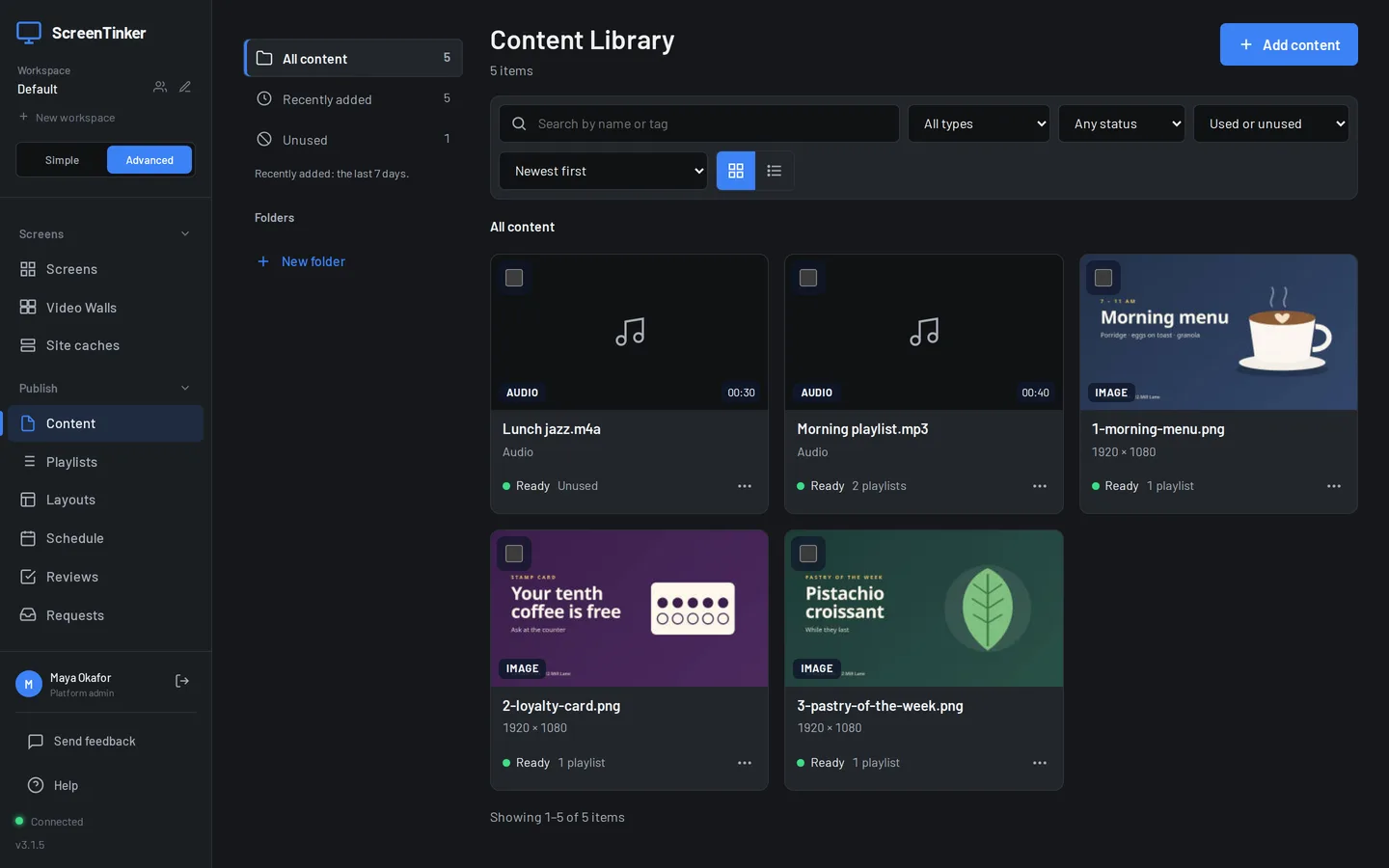
- Choose Content in the sidebar and press Add content.
- Drop your sound files on Upload files, or press browse and pick them. Audio uploads the same way as photos and videos, with the same size limit.
Make a music playlist
- Open Playlists and open a playlist, or press + New Playlist.
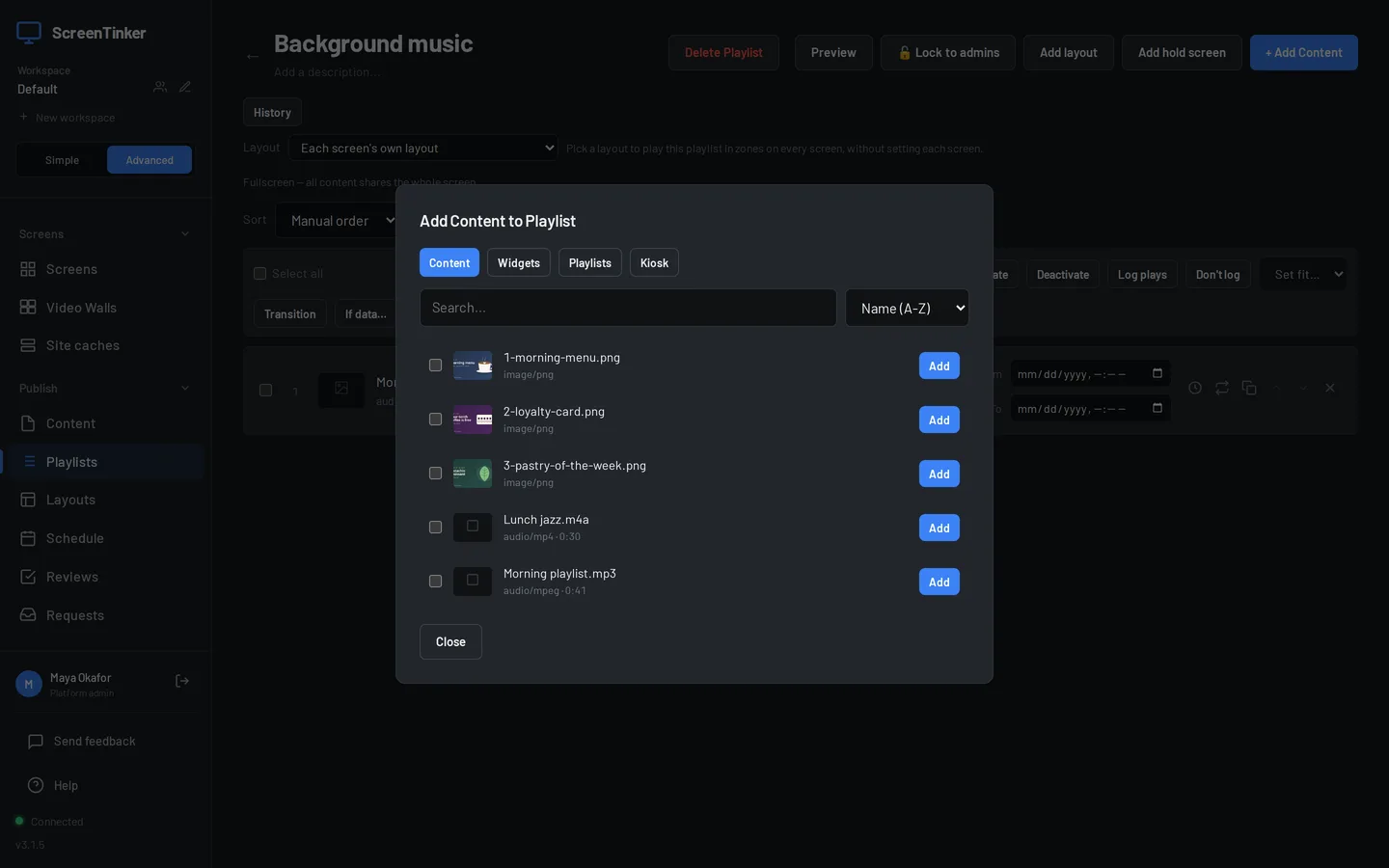
- Press + Add Content. Your audio files are in the list with their type and length, for example "audio/mpeg · 0:41". Press Add next to each one you want.
- Press Publish, and put the playlist on a screen as usual. See Content and playlists.
An audio item plays to the end of the file, then the playlist moves on, the same as a video. Its Duration starts as the file's length. If a playlist holds just one item and it is an audio file, the screen plays it again and again until you change the playlist. To loop one song, give it a playlist of its own.
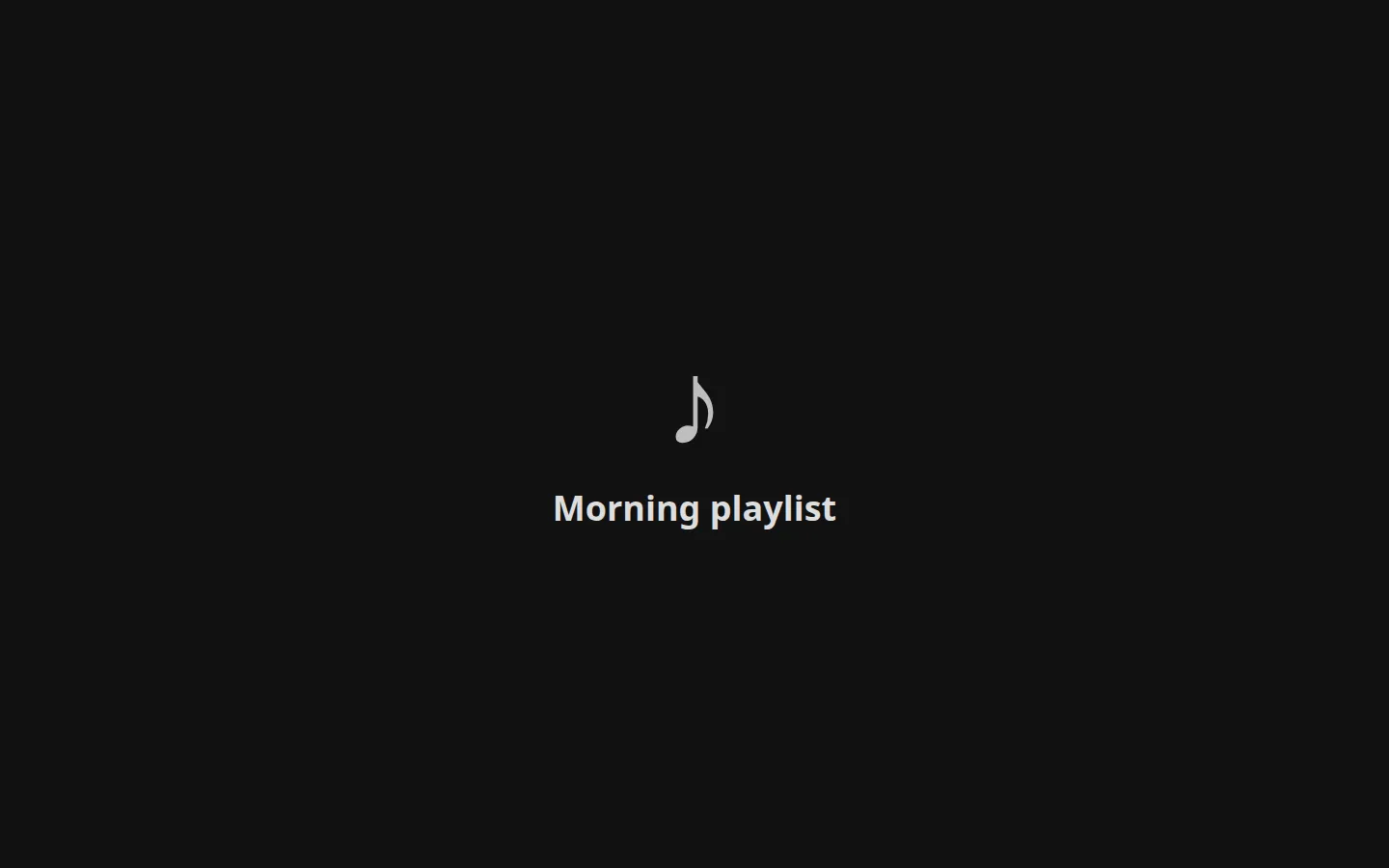
When the whole screen is playing music, it shows a dark card with a music note and the file's name, without the ending such as ".mp3". Name your files the way you want them to appear.
You can mix sound files with pictures in one playlist, but while an audio item plays, the card is all people see. For music under your pictures, use a layout zone.
Background music under your pictures
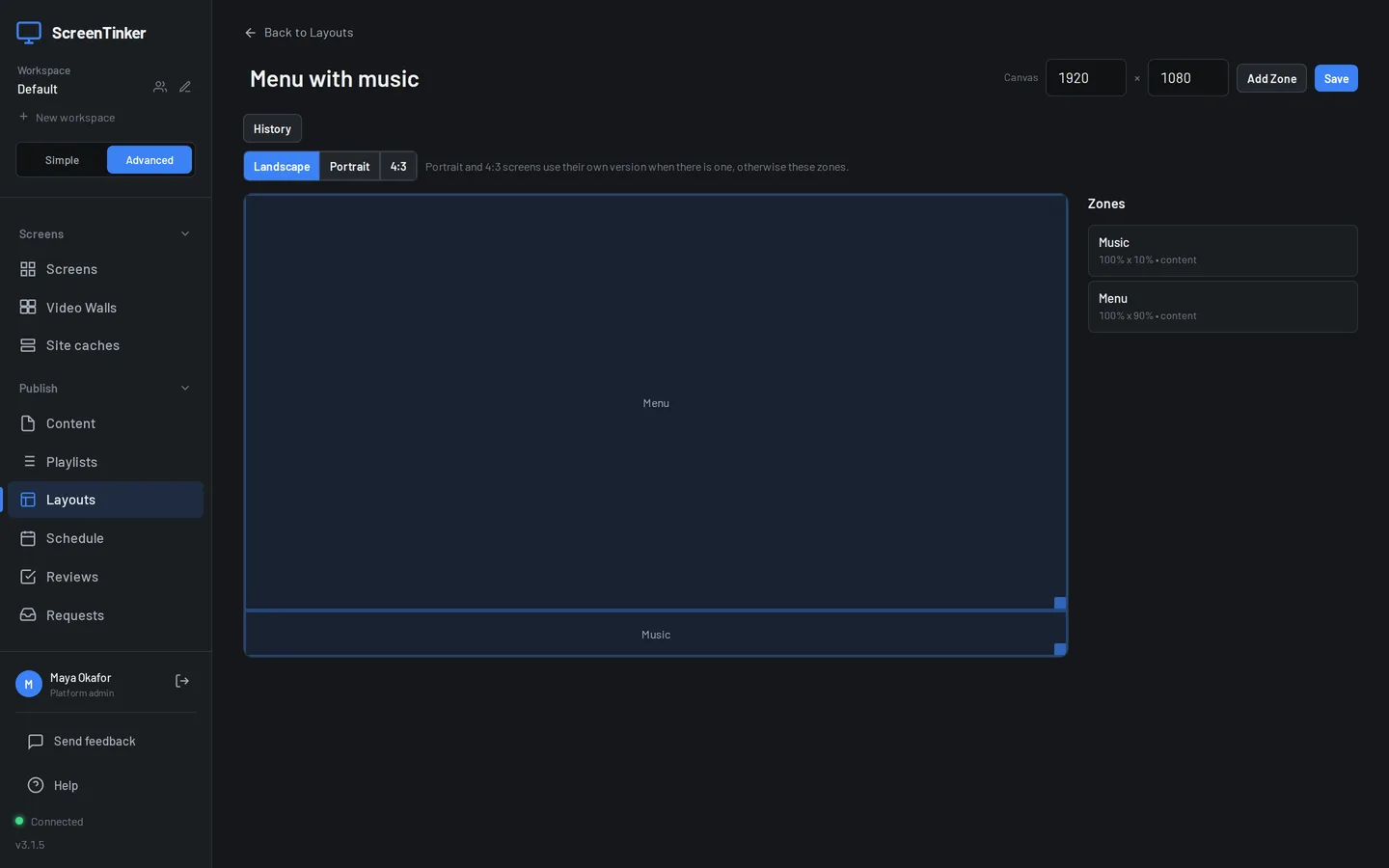
A layout splits the screen into zones, and each zone plays its own items on its own timer. Give the music a zone of its own and it plays while the other zones show your menu. In a zone, an audio item shows no picture: the zone shows only its background colour, so it can be small.
- Open Layouts and make a layout with a zone for the music, for example a thin strip called "Music", and a big zone for your pictures. Read Which zone is heard first: the order of the zones matters.
- Open the playlist, and in the Layout row pick that layout.
- Add the audio file with + Add Content, then set its Zone picker to the music zone. Leave your pictures in the big zone.
- Press Publish.
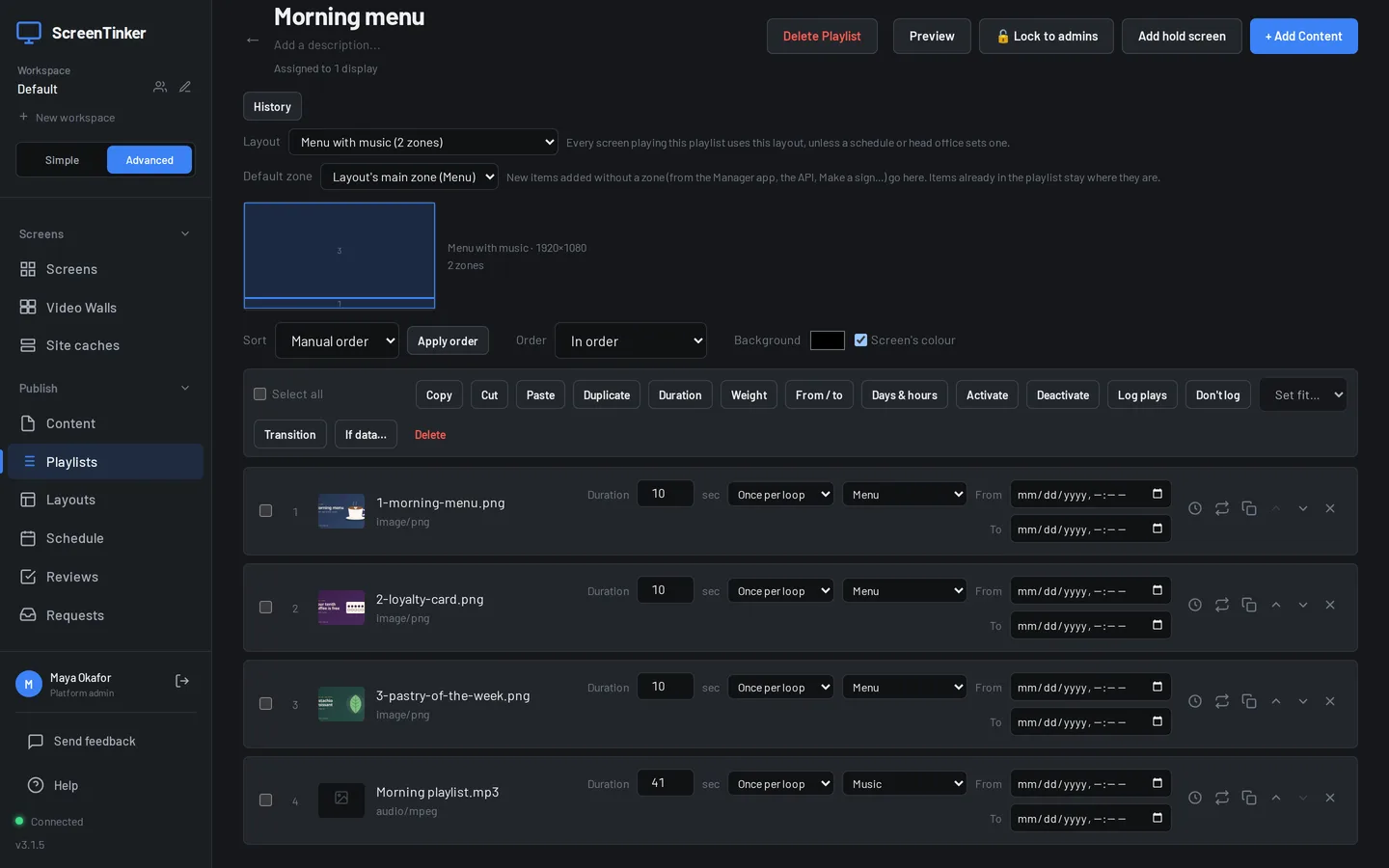
A zone with just the one music item plays it over and over. A zone with several sound files plays them one after another, each to its end.
Which zone is heard
Players decide differently which zones may make sound, so two zones never fight over the speakers on the simpler ones:
- Web player (a browser, LG webOS and BrightSign) and Samsung Tizen: only the layout's first zone is heard. That is the zone at the top of the Zones list in the layout editor, normally the one the layout was made with. The layout editor can't reorder zones, so plan for it: a new layout starts with one zone called "Main"; make that one the music zone, then press Add Zone for your pictures. Music in any other zone plays silently on these players.
- Android and Fire TV, Raspberry Pi and Windows: every zone can be heard. If another zone has a video with sound, it plays over your music, so mute that video (see Mute).
- Roku: only the largest zone is heard, because a Roku plays one video or sound at a time. A smaller music zone stays silent for the length of the song.
On the web player, a video in the first zone has sound too, and videos in the other zones are always silent. On Tizen, videos in zones are always silent.
Mute
To silence one item without taking it out, open the screen from Screens, choose the Playlist tab, and press the speaker button on that item's row. It turns red with a cross when the item is muted; press it again to unmute.
- It changes the item in the playlist, so every screen that plays that playlist is muted too, not only this one.
- It works straight away. If the item is playing, full screen or in a zone, the sound stops at once. It also stays muted the next time round, without pressing Publish.
- In a layout zone, every player honours the mute, and muting one item never silences the music in another zone.
A muted item still plays, silently, for its full length.
Which players play what
- Web player in a browser: all five types. See Sound in a browser.
- LG webOS and BrightSign: these run the web player, and their apps now ask for sound when they start, so they can play audio with no one tapping the screen.
- Android TV, Fire TV and Android boxes: all five types.
- Raspberry Pi and Windows apps: all five types. They play the copy they have downloaded.
- Samsung Tizen: plays audio items.
- Roku: MP3, M4A, WAV and FLAC. Ogg files are skipped, and the screen's log says to upload MP3, M4A, WAV or FLAC instead.
- Samsung SSSP3 app: does not play audio items. It shows "Unsupported on Samsung SSSP3 display" and moves on to the next item.
If a file can't be played, the screen skips it and carries on with the playlist. On a video wall, only one screen of the wall plays the sound.
Sound in a browser
Browsers don't let a web page start playing sound on its own. When the web player opens, it shows Tap anywhere to start. Click or tap once and it plays with sound. If nobody does, it starts after 5 seconds anyway, but muted: the music card shows and the music runs silently until someone clicks the screen.
For a screen nobody touches, use a kiosk browser that can allow sound without a tap (Fully Kiosk Browser calls it "Autoplay Audio"), and add ?autoplay_audio=1 to the player's address. The player checks that the browser really allows sound, and if it does, starts with sound by itself. If the browser refuses, the tap screen stays as before.
FAQ
The screen shows the music card but I hear nothing.
Check, in order: the TV's own volume and mute; the item's speaker button on the screen's Playlist tab; on a browser, whether anyone clicked the screen (see Sound in a browser); and on a Roku, whether the file is Ogg.
My background music is silent but the pictures play.
The music is probably in a zone your player doesn't hear. On the web player and Tizen it must be the layout's first zone; on Roku, the largest. See Which zone is heard.
Does an emergency alert stop the music?
Yes. An emergency alert replaces the screen's playlist, music included, and the playlist comes back when the alert ends.
Try it on your own screens
Start a 14-day Pro trial on hosted ScreenTinker: up to 15 screens, every feature, no credit card.
Or host it yourself, free and open source: self-hosting guide · GitHub